

In This Blog
These five mistakes in your clinic’s inventory system are secretly working against you:
- The unit ratio mistake, which displays full boxes as single items in your system
- Why using a fixed reorder number causes you to run out of supplies unexpectedly
- The use of default dates for tracking the expiration of vaccines and biologics
- The fixed error limit, which helps to conceal costly supply losses in clean audit reports
- The data wall separating patient information from your stock room is causing unbilled costs
For most clinics, setting up an inventory system takes weeks. Vendor evaluation, demo sessions, and agreements eat up that time. Then the clinic goes live on default settings. And nobody knows why the figures never match the shelf. Your clinic inventory module setup is not a one-time task. It is a process of live decisions. Five simple mistakes during setup will quietly misguide your team every day.
Setting 1: Why Your Unit Ratio Is Showing Stock That Does Not Exist On The Shelf
Set your base unit to the smallest individual item, not the box it arrives in. For example, a pack of 100 test strips logs as 100 units. Not 1. Enter any clinic storage room on a busy day. Someone is pulling one glove from a box of 200. Meanwhile, the staff member removes one test strip from a pack of 100. They also take five syringes from a bulk pack. However, your software does not track individual items. It only logs that a full box arrived.
What Most Clinics Do
The module you are using follows a 1:1 ratio unit. So one unit on the order line represents one unit in the stock. Even if the box holds 100 strips, the count stays at one all week. As a result, nobody notices until a staff member reaches for something that is already gone.
What To Do Instead
Open the master item catalog in your clinic management software. Create a unit conversion for each item that you purchase in bulk. Your base unit should be the smallest individual item. A pack of 100 strips logs as 100 units on arrival. Each withdrawal drops the count immediately. That is how the screen stays in sync with the shelf.
What This Prevents
Mismatching stocks. This is why staff book appointments against counts that do not exist. Therefore, get the base unit right first. Everything else in your module depends on it.
| SCENARIO | WRONG SETUP | CORRECT SETUP |
| Item Received At Dock | Logs as one unit | Logs as 100 units |
| Staff Pull From Stock | Still shows one unit | Updates to 40 units |
| Reorder Trigger Check | No alert fires | Fires at threshold |
| Risk To Clinic Ops | Empty shelf risk | Caught before stockout |
Setting 2: Why Frozen Reorder Numbers Are Creating Shortages You Never See Coming
A live reorder point catches supplier delays before they become shortages. A fixed number never will. It felt safe when you set it. However, the number you entered at implementation was only right for that one week. Since then, lead times have shifted. Patient volume grows. Seasons get busier.
The Default Mistake
You entered reorder quantities manually in your system tables. These numbers never change, even when your supplier’s delivery time does. For example, demand during flu season can be 40% higher. But the alert still fires on the old number. Sometimes it never fires at all.
The Right Fix
Use your clinic software analytics tools to activate delivery lead time tracking rules and automatically update reorder calculations. Link real supplier delivery data to your reorder calculation. Use the formula to calculate your reorder point:
Reorder Point = (Average Daily Usage × Delivery Lead Time) + Safety Stock
When the lead time of the supplier changes, the notification automatically changes. No need for spreadsheets. There is no need for any manual intervention at all. Adjusting the reorder points according to the demand and supplier lead time is one of the best methods to avoid stockouts.
Reorder Quantity = Average Daily Use × Desired Days of Coverage
Applied to the same saline flush example:
- Average daily use: 40 units
- Supplier lead time: 3 days
- Safety stock (buffer): 60 units
- Desired coverage: 14 days
| SETTING | CALCULATION | VALUE |
| Reorder Point | (40 × 3) + 60 | 180 units |
| Reorder Quantity | 40 × 14 | 560 units |
Use calculated figures, not estimates or system defaults – and revisit them every 90 days, or sooner if patient volume shifts meaningfully.
What This Prevents
Unexpected inventory shortages due to delays. In fact, the FDA’s Office of Supply Chain Resilience confirms that delays are a known hazard for healthcare facilities. As a result, a live reorder point means no supplier delay catches you off guard. You see the gap before it becomes a shortage.
 NOTE
NOTE
Setting 3: Why A Poor Clinic Inventory Module Setup Lets Your Biologicals Expire Unnoticed
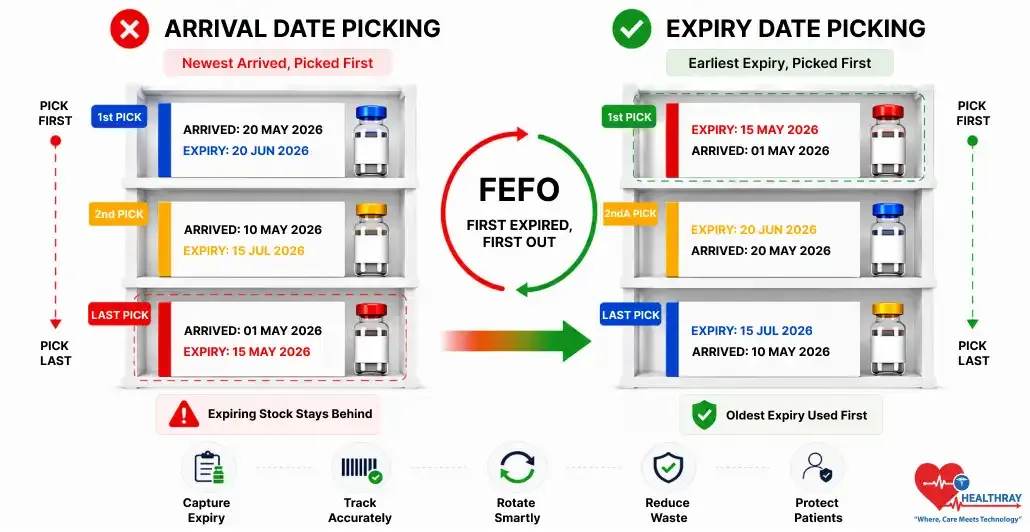
Sort stock by expiry date, not arrival date. That single change is FEFO – First Expired, First Out. Vaccines, reagents, and drugs all carry a manufacturer’s expiry date. That date does not care when the item arrived at your dock. Once it passes, the product is wasted. Unfortunately, in most clinics, nobody picked it in time.
Where It Goes Wrong
Most modules use FIFO (First In, First Out), sorting stock by arrival date. This pushes newer items to the top, so staff pick them first, while older stock with shorter remaining shelf life stays unused and eventually expires.
How To Fix It
Reverse the picking logic. Specifically, make expiry date the first sorting criterion. This is FEFO: First Expired, First Out. Additionally, set the lot number and expiry date as mandatory fields at the receiving dock. No product should enter your inventory without both fields filled.
What This Prevents
Expired product wastage is significant. Research in Exploratory Research in Clinical and Social Pharmacy shows that medicine wastage causes major financial losses in healthcare. Most of that loss comes from expired products. FEFO ensures staff always use the oldest expiring stock first, rather than simply the oldest received stock under FIFO logic.
CDC’s Vaccine Administration Management System guidelines state that expiration date tracking is one of the mandatory fields for the clinical inventory management system. Expiry date should be logged and checked at all entry points of the products, not only after their use.
 PRO TIP
How A Multi-Specialty Clinic Cut Expired Stock Write-Offs To Near Zero
A mid-sized multispecialty clinic in Pune was writing off vaccines and reagents every quarter. They assumed it was a storage problem. However, an audit told a different story. Their system was sorting inventory by arrival date instead of expiry date.
So they switched to FEFO picking and made expiry date mandatory at the dock. Within a few months, expired stock write-offs fell significantly because staff consistently selected items closest to expiration first. The fix took less than a day. Therefore, if your clinic is writing off expired stock every quarter, the problem is almost always in how the dates are sorted.
Setting 4: Why Flat Audit Tolerances Are Hiding High-Value Supply Losses In Reports
One flat tolerance level hides high-value losses inside a clean report. However, tiered thresholds surface them the same day. A clean report sounds reassuring. Even so, it is not always honest. Not every item in your storeroom carries the same value. So a flawless report does not mean nothing is missing. Most clinic teams set a default audit tolerance at go-live and never revisit it.
The Hidden Problem
As a result, one threshold covers everything – cotton balls and medical devices alike. A missing instrument tray clears the same bar as a missing tape roll. Consequently, the report marks it as normal. Then it disappears entirely.
The Correct Setup
Establish item grouping based on item value in your audit module. For instance, controlled medications, vaccines, and expensive equipment should always carry zero tolerance. In contrast, low-cost consumables can allow up to 3 to 5 percent. This ensures that each item in your multi-location clinic centralized software follows the appropriate audit policy across all locations.
What This Prevents
Costly losses concealed by clean reports. When everything shares one threshold, costly losses hide for months. In contrast, tiered thresholds surface the problem the same day it happens. As a result, your team catches it that afternoon, not at the next quarterly review.
Setting 5: Why Disconnected Systems Are Turning Used Supplies Into Unbilled Costs
When both systems run separately, staff log the same supply use twice. On a busy afternoon, the second entry gets skipped. As a result, the stock remains unbilled. Fortunately, one auto-deduction rule closes that gap entirely. Otherwise, by the time a report flags it, thousands of dollars in supplies are already gone. No invoice covers that loss.
What Breaks Revenue
Your clinical records and inventory modules run as separate systems. So every time a clinician uses a supply, staff must log it in both places. On a busy afternoon, the second entry gets skipped. As a result, the stock leaves the room with no billing record attached. Both systems show no errors. Yet revenue just quietly disappears.
The Direct Fix
Integrate your clinical record system, clinic appointment booking software, and inventory management system into a single connected workflow. Set an automatic deduction rule. When a physician closes a patient record, the system deducts the right item from inventory right away. One action in the clinical system does the work in both places. Staff never enter the same data twice.
What This Prevents
This will ensure there is no case of inventory loss and the associated costs, which lower profit margins. This ensures that all the supplies utilized in the treatment process are billed, recorded in audits, and accounted for in the inventory. Manual deductions cause a loss of money due to omission. Automated deductions ensure nothing is left out. Billing is done properly. Audits become easy. Reordering is done promptly. This is when your inventory module becomes a tool for profit.
Learn more: Clinic Software EMR Integration Failures and How to Self-Test Each One for practical steps to identify integration issues that can lead to inventory discrepancies and missed billing.
To Sum Up: Wrong Configuration Is A Patient Care Risk, Not A Stock Problem
Any environment that your module operates on will either provide you with correct figures or simply fake correct figures through your clinic inventory module setup. The five errors mentioned here are where your clinic setup is secretly going to make mistakes. No warning. No error messages. Simply incorrect data that keeps accumulating each day.
To start, fix your unit ratios and ensure the system counts boxes as individual items. Next, use live reorder formulas to avoid surprises from supplier delays. Apply FEFO to all items with expiration dates. Finally, set tiered audit limits based on item value and integrate your clinical record-keeping system with your stock management system to record every supply used during treatment immediately.
These five settings apply whether you run one clinic or are evaluating hospital inventory management systems across multiple sites. None of these changes requires a new vendor. They only require the right setup in the system you already have. Clinics that get all five right keep shelves stocked, bill accurately, and never face an empty shelf that the screen still shows as full.